Royale Fortress App Login Problems: Fix Password, Verification and Connection Errors
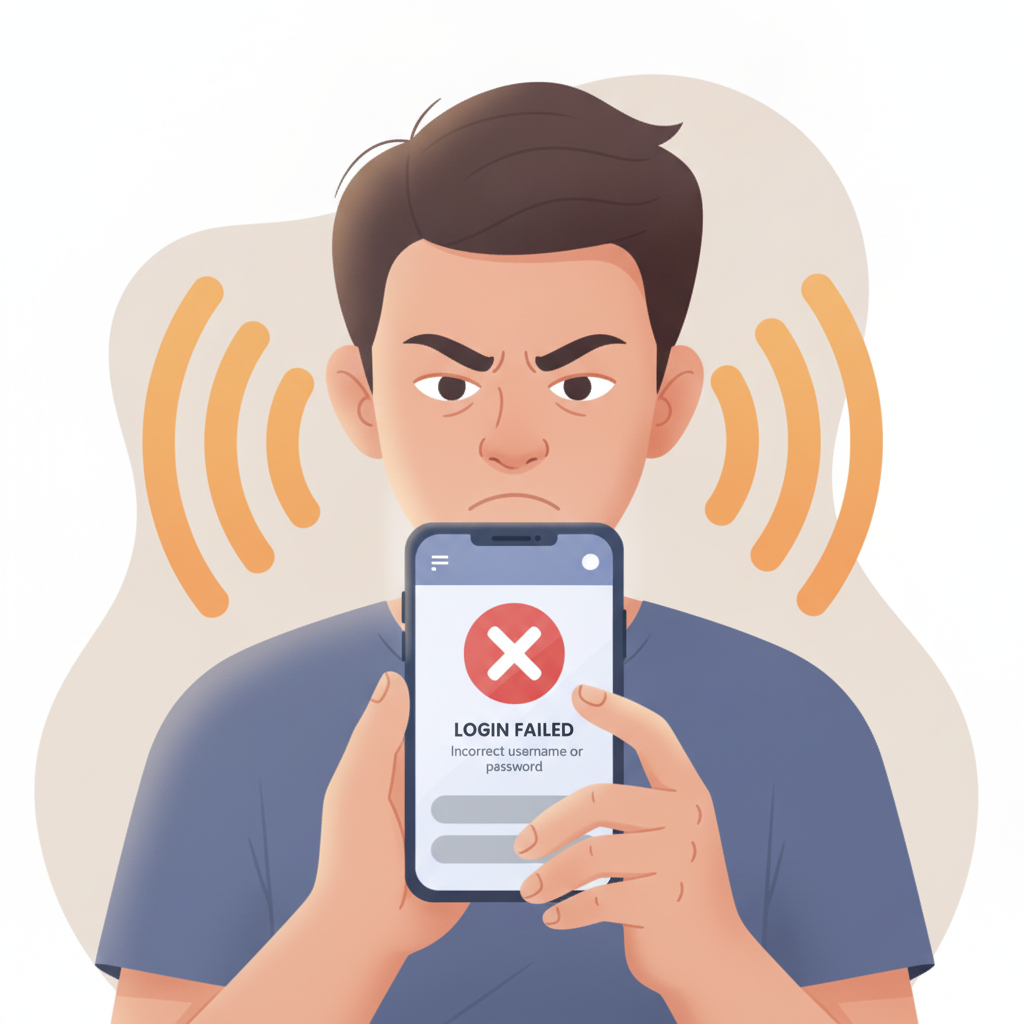
When you open the Royale Fortress mobile app and can't get past the login screen, it usually falls into one of a few categories: incorrect credentials, an account flag that needs clearing, or a connection hiccup between your phone and the platform's servers. This guide walks through the most common Royale Fortress app login problems and the steps to fix them on Android or iOS.
21+ only. Keep your login details private, and if gambling stops being fun, reach out for help.
Common Login Errors on the Royale Fortress Android and iOS App
Wrong Password or Username
The app will display "Invalid username or password" or a similar message. Double-check that:
- You're entering the exact username or registered mobile number you used during sign-up.
- Caps Lock is off and there are no extra spaces before or after your password.
- Autocorrect hasn't changed a character in your password field.
If you've recently changed your password on the desktop site, make sure you're using the new one in the app—credentials sync across devices, but the app won't know until you enter the updated password.
Account Locked or Suspended
If the app says "Your account is locked" or "Contact support," it usually means:
- Too many failed login attempts in a short window triggered an automatic lock.
- The platform flagged your account for ID verification or document upload.
- A withdrawal or deposit dispute is under review.
An automatic lock from failed attempts typically clears within 15–30 minutes. If the message persists beyond an hour, contact Royale Fortress customer support through live chat on the mobile site or desktop version; the app itself may not let you reach the chat widget while logged out.
Server Timeout or Maintenance
Errors like "Unable to connect to server" or "Service temporarily unavailable" can appear during scheduled maintenance or unexpected outages. Check the Royale Fortress official Facebook page or Telegram channel for announcements—most maintenance windows are posted a few hours in advance and last 10–30 minutes.
If there's no announcement and other apps and websites load fine, try switching between WiFi and mobile data to rule out a local network issue.
How to Reset Your Royale Fortress Password from the Mobile App
Forgot your password or suspect someone else knows it? You can reset it directly in the app without switching to a browser.
- Open the Royale Fortress app and tap Log In if you're on the home screen.
- Look for the "Forgot Password?" link below the password field and tap it.
- Enter the mobile number or email associated with your account. Make sure it matches exactly what you used during registration.
- Tap Send Code or Request Reset Link.
- If you registered with a Philippine mobile number, you'll receive a six-digit verification code via SMS within one to two minutes.
- If you used an email, check your inbox (and spam folder) for a password-reset link.
- Enter the SMS code in the app, or tap the link in your email to open a password-reset page.
- Type your new password twice to confirm. Royale Fortress typically requires at least eight characters, mixing letters and numbers.
- Tap Submit or Reset Password.
You'll be logged out of all devices. Return to the app login screen and sign in with your new password. If the SMS or email doesn't arrive within five minutes, check that your registered number or email is still active, then try the "Resend Code" option.
What to Do if the App Says Your Account Needs Verification Before Login
Royale Fortress may prompt "Complete verification to continue" or "Upload documents to unlock your account" on the login screen. This happens when:
- You've reached a cumulative deposit or withdrawal threshold that triggers enhanced ID checks under Philippine regulations.
- The platform's automated system flagged unusual login locations or device changes.
- You requested a large cashout and the finance team needs proof of identity before processing.
Steps to Complete Verification
Because the app login is blocked, you'll need to verify through the mobile browser or desktop site:
- Open your mobile browser (Chrome, Safari, etc.) and go to the Royale Fortress website.
- Log in with your username and password.
- A banner or pop-up should appear asking you to complete verification. Tap Verify Now or navigate to Account > Verification in the menu.
- Upload a clear photo of:
- A valid government-issued ID (Philippine passport, driver's license, UMID, or postal ID).
- A selfie holding that ID next to your face, with both the photo and ID details visible.
- Proof of address dated within the last three months (utility bill, bank statement, or government correspondence showing your name and address).
- Submit the documents. Processing typically takes 24–48 hours on business days. You'll receive an email or SMS when the review is complete.
Once approved, return to the app and try logging in again. If verification is rejected, check your email for the reason—common issues include blurry photos, mismatched names, or expired IDs—and re-upload corrected documents.
Fixing 'No Internet Connection' Errors When Your WiFi or Data Is Working
If the Royale Fortress app shows "No internet connection" or "Check your network" even though other apps load pages and streams without trouble, the issue is usually app-specific caching, DNS resolution, or a firewall rule.
Clear App Cache (Android)
- Go to Settings > Apps > Royale Fortress (or Settings > Application Manager on older Android versions).
- Tap Storage and then Clear Cache. Do not tap "Clear Data" unless you're willing to re-enter your login details.
- Restart the app and try logging in.
Clearing cache removes temporary files that may have corrupted connection data, but your saved username will remain.
Reinstall the App (Android and iOS)
If clearing cache doesn't help:
- Android: Uninstall the APK from your device, then download the latest version from the Royale Fortress mobile site (avoid third-party APK mirrors).
- iOS: Delete the app from your home screen, open Safari, visit the Royale Fortress site, and follow the install profile or TestFlight link for the current iOS build.
- Reinstall and attempt to log in on a stable WiFi or LTE connection.
A fresh install replaces any corrupted app files and ensures you have the newest server endpoints.
Switch Networks
Toggle between WiFi and mobile data:
- If you're on WiFi, turn it off and use your cellular connection for a few seconds while the app tries to reach the server.
- If you're on data, connect to WiFi and retry.
Some internet service providers or corporate WiFi networks block connections to gaming domains. Switching networks will confirm whether your primary connection is the culprit.
Check DNS Settings
On Android or iOS, your phone uses DNS servers provided by your carrier or router. If those servers don't resolve the Royale Fortress domain correctly:
- Android: Go to Settings > Network & Internet > Private DNS and try setting it to
dns.googleor1.1.1.1(Cloudflare). - iOS: Install a DNS profile from a provider like Cloudflare 1.1.1.1 (available as a free app) or configure DNS manually under Settings > Wi-Fi > [your network] > Configure DNS > Manual.
After changing DNS, close and reopen the Royale Fortress app.
VPN and Firewall Interference
If you're using a VPN, ad-blocker, or security app that filters network traffic, temporarily disable it and check if the login screen loads. Some VPN servers are blacklisted by gaming platforms, and ad-blockers can inadvertently block authentication endpoints. Once you confirm the app works without the VPN or firewall, whitelist the Royale Fortress domain in your security app's settings.
Keep Your Login Secure and Gamble Responsibly
Login issues are frustrating, but taking a few precautions prevents most problems:
- Use a unique password for your Royale Fortress account—don't recycle passwords from your GCash, Maya, or email accounts.
- Enable two-factor authentication if Royale Fortress offers it in account settings. This adds an extra code step at login but blocks unauthorized access even if someone guesses your password.
- Log out on shared devices. If you log in on a friend's phone or public tablet, always sign out before handing it back.
- Update the app regularly. Outdated versions can have security gaps or incompatible authentication flows.
If you find yourself locked out because you've forgotten your login during a frustrating losing streak, take it as a natural break. Step away, cool off, and remember that gambling should stay within your entertainment budget. If it's becoming stressful or you're chasing losses, reach out to a responsible-gambling helpline in the Philippines for confidential support.
21+ only. Royale Fortress is intended for adults who can manage their spending. Set deposit limits, track your sessions, and never bet money you can't afford to lose.
By working through password resets, verification uploads, cache clearing, and network troubleshooting in order, most Royale Fortress app login errors resolve within a few minutes. If none of these steps work, contact Royale Fortress support with your registered mobile number and a description of the exact error message—they can check server-side flags or device bans that aren't visible on your end.